
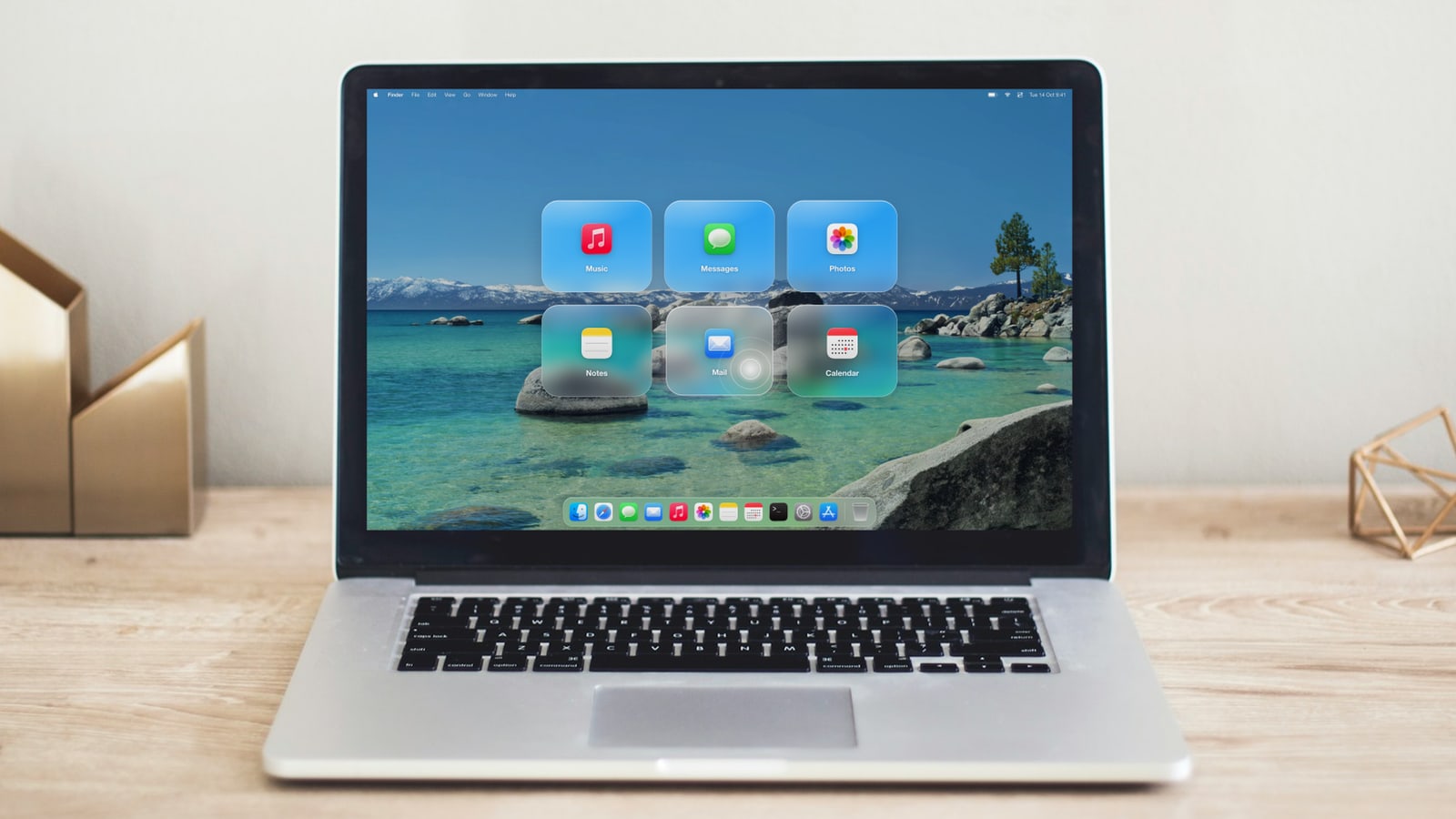
Most laptops do not have a touchscreen. I wanted to know if a laptop can accept a small number of touch inputs with only the hardware that it already has. Magic Tap is my experiment to find the answer. It uses the built-in camera and the built-in microphone. It does not use other sensors.
The problem with the camera
The webcam is above the display, and it points at the user. It cannot see a finger on the screen. Thus, the camera cannot show which part of the screen the finger touches.
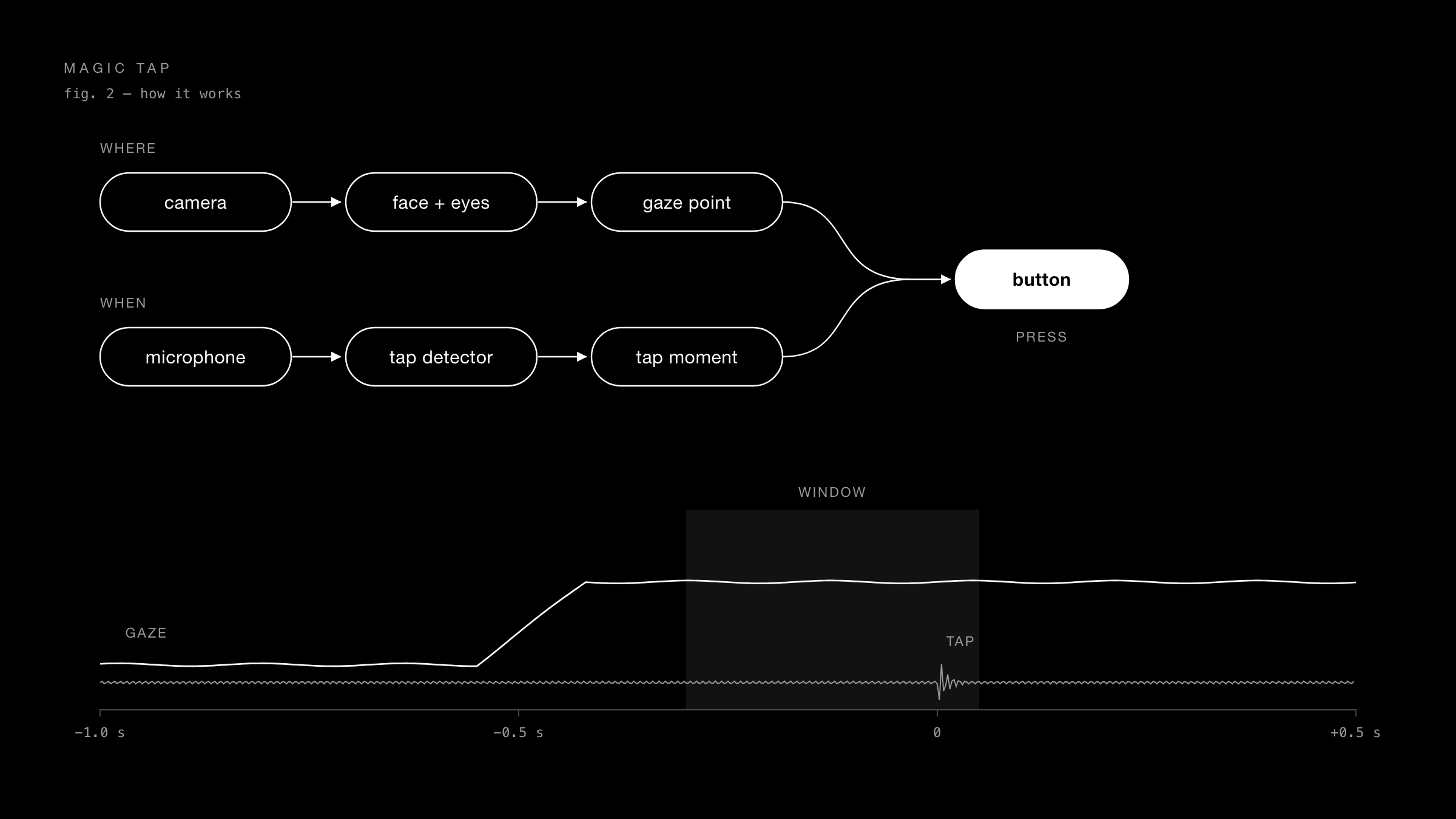
I divided the problem into two smaller problems. The first problem is "where". The second problem is "when". The eyes give the answer to "where", because a person looks at a button before they touch it. The sound of the finger on the glass gives the answer to "when".
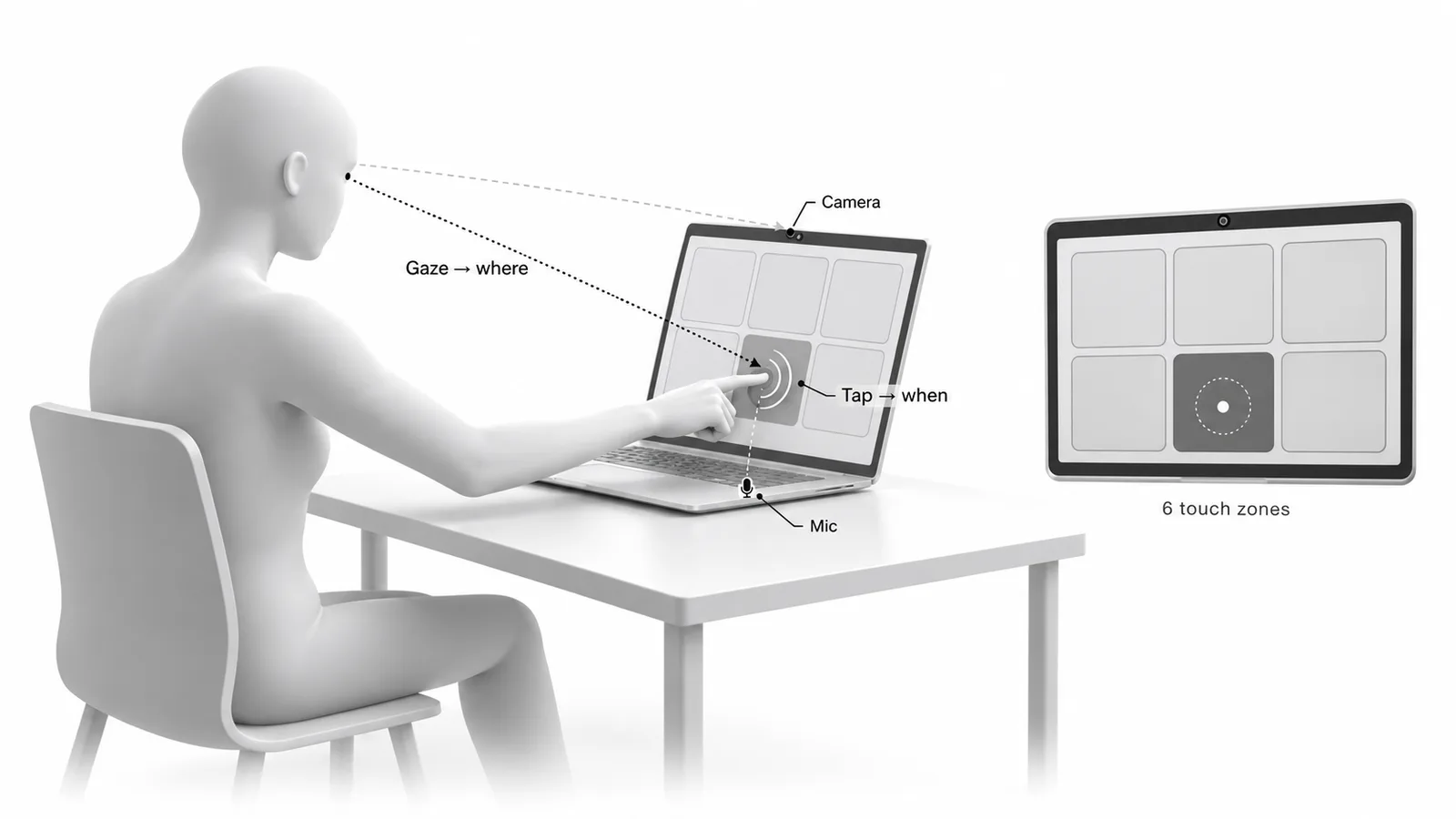
Where: the gaze
MediaPipe finds the face and the eyes in each camera frame. The software corrects the face image for the angle of the head. Then a ResNet-18 model, trained on the ETH-XGaze data set, calculates the direction of the gaze.
A gaze direction is not a position on the screen. A personal calibration changes the direction into a point on the screen. The calibration uses the data from all my previous sessions together. Thus, one bad session does not control the result.
Each session is different, because the seat, the angle of the lid and the light change. Each session starts with a short re-centre step: you look at six dots and touch them. This step takes approximately 15 seconds, and it corrects the drift between sessions.
I found one more error. When a person touches the screen, the gaze estimate is a little too high. The software learns this offset and removes it.
When: the tap
The microphone listens all the time. The software looks for sudden sounds in 3 ms windows, and compares each sound with the background noise. A small classifier then decides if the sound is a tap on the screen. I trained the classifier on my taps and on usual noises, for example typing, speech and music.
The software ignores a sound that occurs less than 150 ms before or after a key press or a trackpad press. It also rejects sounds that are not similar to the sounds that it knows.
From two signals to one button
When the software hears a tap, it examines the gaze in the 0.8 seconds before the tap. It finds the last point where the eyes stopped. This step ignores the fast eye movement from the previous button.
If less than 60 percent of the gaze samples agree on one button, the software does not click. It reports that it is not sure. For this type of input, no action is better than a wrong action.
Results and limits
The test screen has six large buttons in a grid of three by two. I recorded a session on a new day and evaluated it offline. With the re-centre step, the software selected the correct button for 18 of 18 presses. Without the re-centre step, it selected the correct button for 11 of 24 presses.
Tap detection found 91 to 95 percent of the taps. In 73 tests with typing, speech, knocks and music, there were no false taps.
These results have clear limits. I am the only user, and the sample is small. The 95 percent confidence interval for 18 of 18 starts at approximately 81 percent. The evaluation was offline, and the presses were finger rests, not live taps. A live test is the next step. Magic Tap is for a small number of large buttons. It is not for precise pointing.
How to use it
Magic Tap runs on Mac laptops with Apple silicon and macOS 14 or later. In mouse mode, it works in all apps: look at a control, then tap the screen, and the software clicks there. A local WebSocket service lets other apps send the positions of their buttons and receive tap events.
Why I built it
I design interfaces for AI agents. An agent often needs a quick decision from a person, for example "send this draft" or "try again". A screen with three or four large choices could get that decision with one look and one tap. I have not tested this use yet. But the experiment shows that a few reliable touch inputs are possible with no new hardware.
The code, the setup steps and the measurements are open source under the MIT licence, on GitHub.